Convert handwritten notes to text
You can convert handwritten notes into typed text directly on your device. This lets you quickly share or save your handwritten content as digital text.
The Convert to text feature is available for Quick Notes and Notebooks.
Before you start: handwriting recognition language
Before converting handwriting to text, make sure the selected handwriting recognition language matches the language you write in most often. Using the correct language is important, as words may not be recognized correctly otherwise.
You can change the handwriting recognition language at any time in Settings.
How to convert handwriting to text
To turn handwritten notes into digital text, open the note you want to convert and start the conversion from the options menu.
- Open a Quick Note or Notebook
- Open More options
- Tap Convert
Depending on the amount of handwritten content on the page, the conversion may take a moment to complete. The conversion is performed locally on the device and does not require an internet connection.
Note: Only the page you are currently viewing is converted.
What happens during conversion
During conversion, your handwriting is turned into typed text based on how you wrote it on the page.
The conversion is done line by line. Every time you start writing on a new line on your page, a new line is created in the converted text. Empty lines are not preserved.
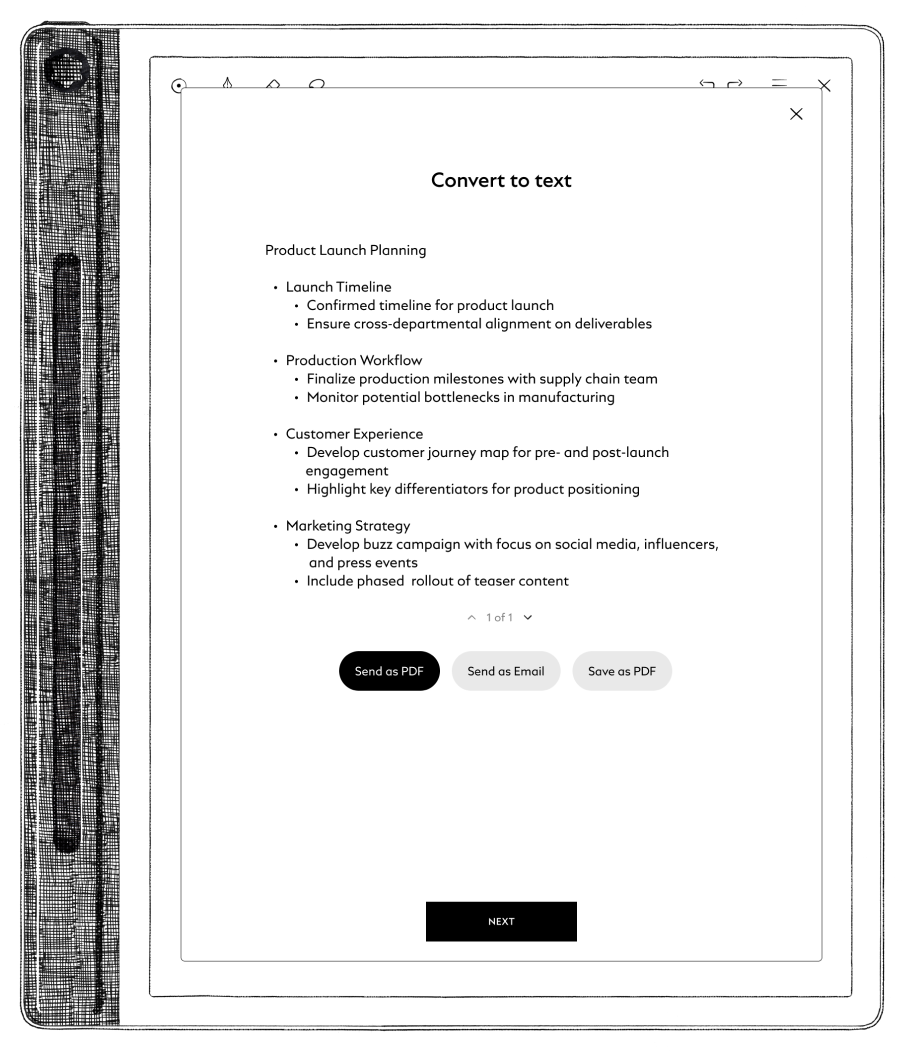 Editing the converted text
After conversion, the text appears in a text box where you can make adjustments before sharing.
You can:
- Edit the text using the keyboard
- Place the cursor anywhere using your finger
- Correct spacing, wording, or line breaks
You cannot select or highlight multiple words at once. The text box is designed for content correction, not detailed formatting.
If your converted text spans multiple pages, you can navigate through the text using the paginators. Please note that these pages do not represent the final page layout of the exported PDF.
Text box vs. final PDF
The text box is a preview area and does not represent how the final PDF will look.
The exported PDF uses a full A-series page, so spacing and layout may differ from what you see in the text box. Layout adjustments cannot be made.
Please note that handwriting styles can vary, and the conversion may result in inaccuracies. The text box is provided so you can review and correct the converted text before sharing. Its purpose thus is to refine the content, not the layout.
What happens to drawings and sketches
The Convert to text feature is intended for handwritten text. Sketches and drawings are not included in the converted result.
In some cases, drawn elements may appear as symbols within the text. You can remove or correct these in the text box before sharing.
Sharing options
Your sharing options depend on whether your device is connected to the Cloud and the internet.
No cloud account
You can:
- Save as PDF
Once saved, the PDF appears on the Home screen, and a confirmation message is shown. You can still share the file by exporting it via a USB-C cable. The original handwritten file remains unchanged and is not replaced by the PDF.
Cloud connected
You can choose between:
- Send as PDF
- Send as email
- Save as PDF
Send as PDF: Opens the standard email dialog with the PDF attached.
Send as email: Sends the converted text as the email body, without an attachment. You can select recipients, but the email subject is set automatically and cannot be changed.
Cloud connected without internet
Sending options are unavailable until an internet connection is established. The conversion needs to be restarted once you are back online.
For the smoothest experience, make sure your device is connected to Cloud and the internet before starting the conversion.
Exiting the conversion
Tapping X closes the entire conversion process. If you exit before sharing, the conversion needs to be restarted.